
|
|
| Eliminating Pop-ups and Spyware |
|
| First |
|
Make sure your virus program has up to date definition
files: |
|
|
Scan the entire hard drive to ensure no viruses are present |
|
Without up-to-date virus protection, all other steps are a waste of time |
|
If you have a full time Internet connection - configure your virus
update to run automatically, at least once a week |
|
If you use a dial-up connection - update your virus software manually at
least once a week |
|
| Second |
| Make sure your operating system files are up to date: |
|
Open Internet Explorer |
|
On the menu, choose Tools - Windows Update |
|
This will take you to the Microsoft Windows Update site |
|
Choose scan for updates |
|
Your system will be examined for missing security updates |
|
Once the scan finishes, you will be presented with
available updates |
|
Review and Install any Critical Updates and Service Packs |
|
Restart your computer if prompted |
|
Without up-to-date operating system files, your system is
exposed to known security exploits |
|
If you have a full time Internet connection - configure the
Windows Update to run automatically |
|
If you use a dial-up connection - run this manually at
least once a week |
|
| Third |
| Get rid of cookies and temporary internet files: |
|
|
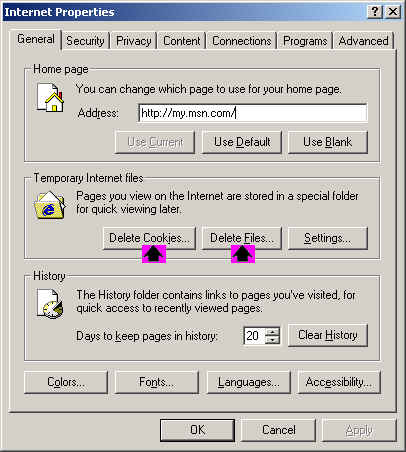
In Control Panel - Internet Options |
|
|
Choose Delete Cookies |
|
Then choose Delete Files |
|
|
|
This gets rid of many pop-up problems (temporarily) |
|
| Fourth |
| Download, install and run Ad-aware: |
|
Click here to download Ad-aware
personal edition |
|
Save the file to a folder on your hard drive |
|
Navigate to the folder where you saved the file |
|
Double click on the file to start the installation |
|
Once installed, start the Ad-aware program |
|
|
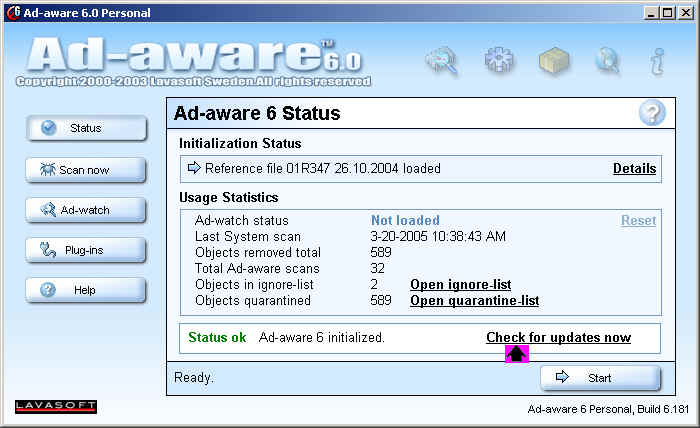
Click on Check for updates now |
|
|
|
|
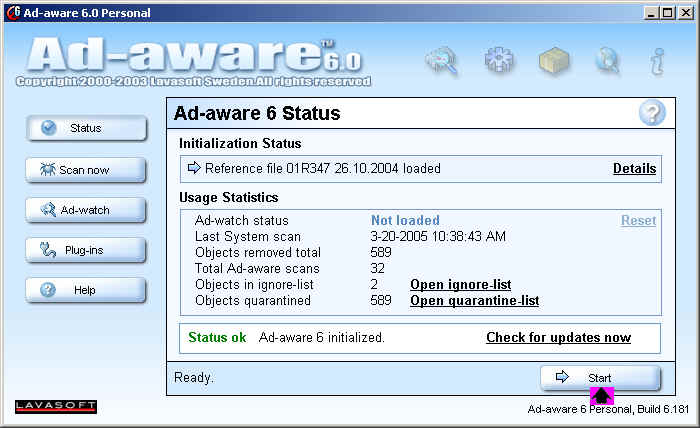
Once updates, if any, are downloaded - Click on Start |
|
|
|
|
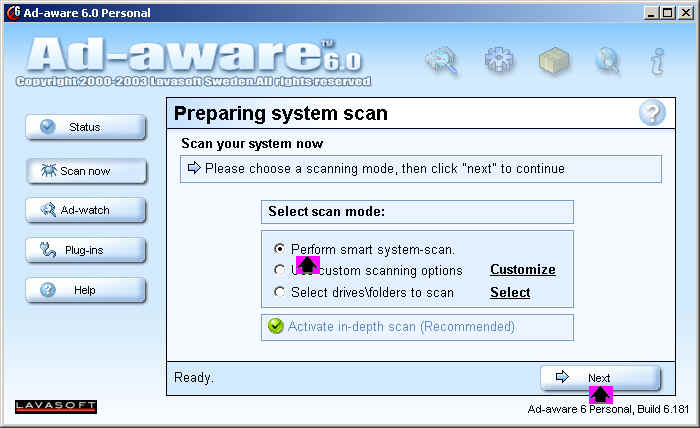
Choose smart system scan under Select scan mode (if not
already selected) |
|
Then click on the Next button to start the scan |
|
|
|
| The software will scan your computer - This will take a
while |
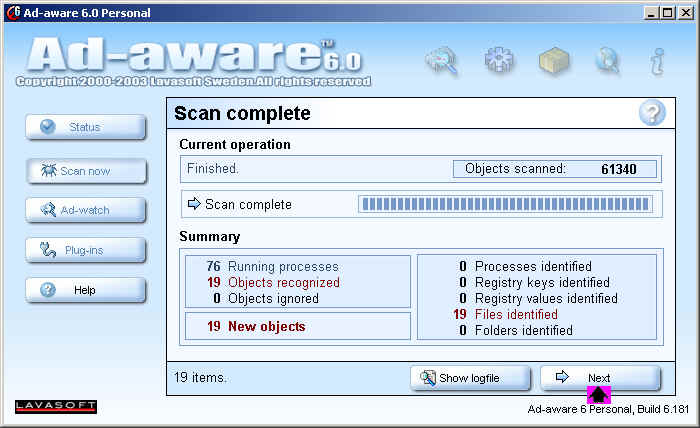
| When scan completes, click on the Next button |
 |
|
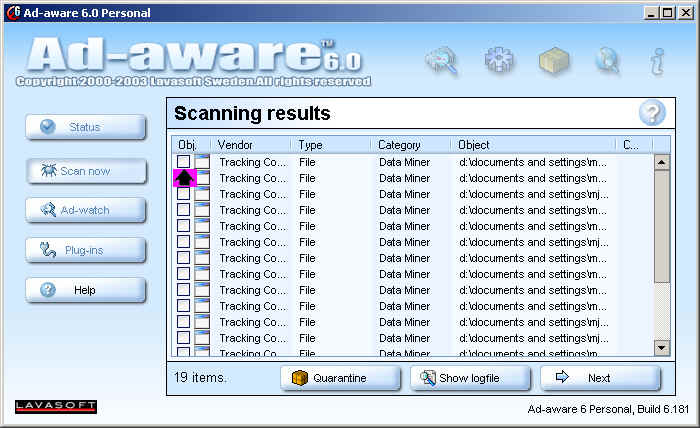
| Right click on the first object and choose Select all
objects |
 |
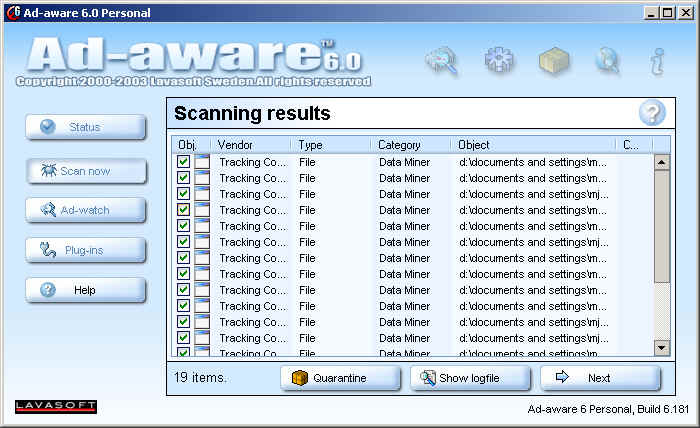
| Your screen should look like this: |
 |
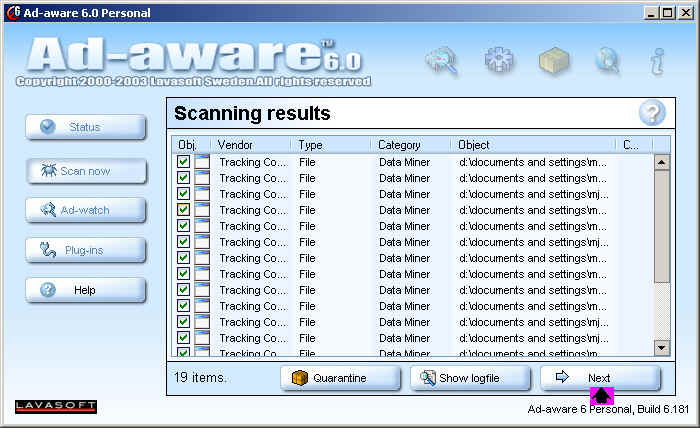
| Then click on the Next button: |
 |
|
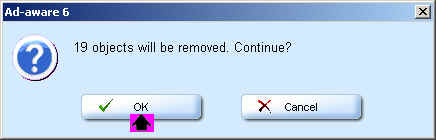
| Click on the OK button to remove the objects: |
 |
| You should be returned to the first screen where you can
exit the program |
|
| Summary |
|
Make sure you don't have a virus problem by keeping your virus software
current |
|
Make sure critical updates to your operating system files ( Windows
2000, XP, etc.) are installed |
|
Run Ad-aware at least weekly to delete tracking and other objects
written to your hard drive by some web sites |
|
|
Questions
or comments e-mail admin@nacona.com |
|
©
Copyright 2006 NACONA.COM
|
|

|
|
|